WIP Report Excel Template for Construction — Free + How to Use It
Most construction bookkeepers build their WIP schedule in Excel every month. Here's the exact template columns you need, the formulas to use, and how to populate it from QuickBooks Online data — plus a faster alternative if you manage multiple clients.
Why Every Construction Bookkeeper Needs a WIP Template
A WIP (Work in Progress) schedule shows the financial position of every active construction job: how much has been earned vs. billed, and whether each job is over- or under-billed. Banks, bonding companies, and CPAs require it — and QuickBooks Online doesn't generate it automatically.
So most bookkeepers build it in Excel. Every month. By hand. If you manage 5 contractor clients, you're probably spending 15–20 hours a month just on WIP spreadsheets.
What the Manual Excel WIP Looks Like
This is what most construction bookkeepers are working with — a spreadsheet they rebuild every month by exporting data from QuickBooks and filling in formulas manually:
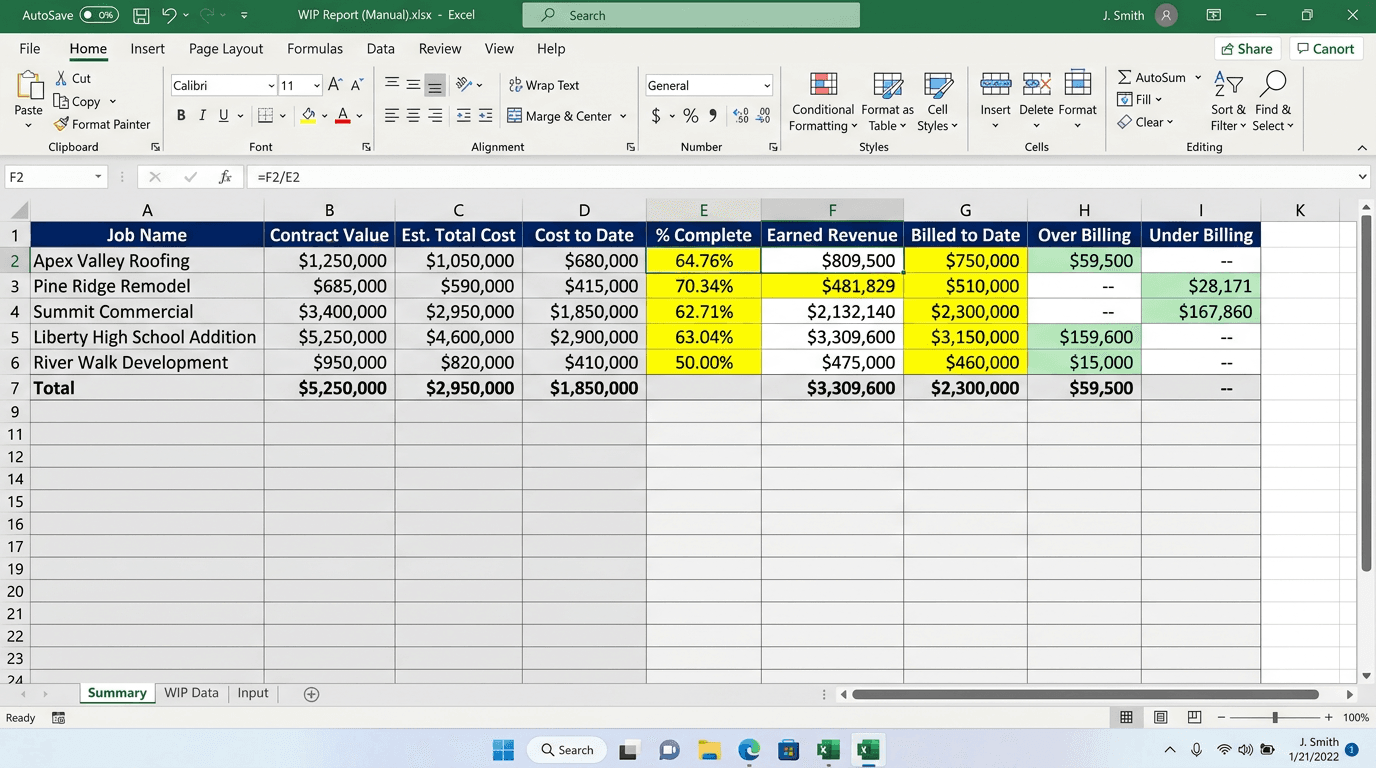
The manual Excel WIP — rebuilt from scratch every month per client.
It works. But for a bookkeeper managing 8–10 construction clients, rebuilding this spreadsheet from QBO exports every month adds up to 15–25 hours of repetitive work. Every. Single. Month.
The Columns Your WIP Template Needs
Set up one row per active job. Your template needs these columns — in this order — to match what CPAs and bonding companies expect:
| Column | Where It Comes From |
|---|---|
| Job Name / Number | Customer/job name in QBO |
| Original Contract Value | Estimate total in QBO |
| Approved Change Orders | Added line items on Estimate |
| Revised Contract Value | Col B + Col C |
| Estimated Total Cost | Entered manually by contractor |
| Cost to Date | Bills + Expenses in QBO by job |
| % Complete (Cost-to-Cost) | Col F ÷ Col E |
| Earned Revenue | Col D × Col G |
| Billed to Date | Invoices in QBO by job |
| Retainage Held | Tracked separately or from invoice lines |
| Net Billed (excl. retainage) | Col I − Col J |
| Over Billing (liability) | If Col K > Col H, the difference |
| Under Billing (asset) | If Col H > Col K, the difference |
| Gross Profit to Date | Col F − (Col E × Col G) |
| Projected Total Profit | Col D − Col E |
The Core Formulas (Copy These Exactly)
Assuming your data starts on row 2:
// Revised Contract Value (col D)
=B2+C2
// % Complete (col G)
=IF(E2=0, 0, F2/E2)
// Earned Revenue (col H)
=D2*G2
// Net Billed excl. retainage (col K)
=I2-J2
// Over Billing (col L)
=IF(K2>H2, K2-H2, 0)
// Under Billing (col M)
=IF(H2>K2, H2-K2, 0)
// Projected Total Profit (col O)
=D2-E2
Add a totals row at the bottom. The total over-billings become a current liability on the balance sheet. Total under-billings become a current asset. Your CPA will check these against the balance sheet — they need to tie out.
How to Pull the Data from QuickBooks Online Each Month
Contract Values → Estimates by Customer report
QBO: Reports → Estimates by Customer. Filter to "Open" estimates only. Export. The Total column is your Revised Contract Value. Note: if change orders are on separate Estimates, you need to sum them per job.
Costs to Date → Job Profitability Detail or Project Profitability
QBO: Reports → Job Profitability Detail (or Project Profitability if using Projects). Set the date range to the end of the month. Sum the "Actual Cost" column per job.
Billed to Date → Invoice List
QBO: Reports → Invoice List. Filter to all invoices from job start date through month end. Group by customer. Sum per job. Separate out retainage if it's tracked on invoice lines.
Estimated Total Costs → Manual entry
This is the one number QBO can't give you. You need the contractor to provide it — or track it in a separate worksheet. It's the original cost budget plus any change in scope.
What Takes So Long — and Why It Adds Up
If you have one client with 8 active jobs, here's a realistic time breakdown:
- Pulling 3–4 QBO reports and exporting to Excel: ~20 min
- Cleaning and organizing the export data: ~20 min
- Manually entering estimated total costs and contract values: ~15 min
- Building and checking the WIP formulas: ~30 min
- Reconciling retainage, checking totals, adjusting for errors: ~20 min
- Formatting and sending to the CPA or client: ~15 min
That's roughly 2 hours per client per month just on the WIP spreadsheet. For a bookkeeper managing 10 construction clients, that's 20 hours a month — half a work week — on one report type.
What It Looks Like When It's Automated
Instead of rebuilding the spreadsheet every month, imagine opening a dashboard where the WIP schedule is already done — pulling live from QuickBooks, calculated automatically, ready to export as a PDF:
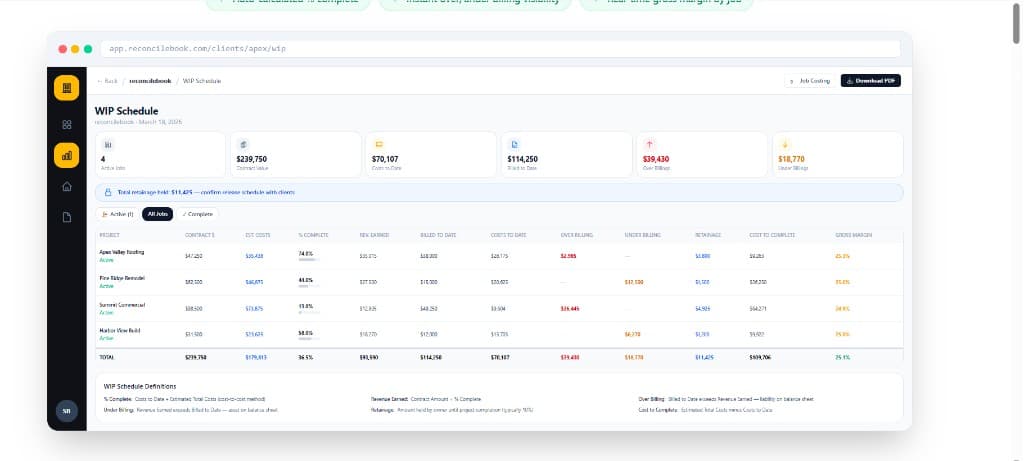
ReconcileBook WIP Schedule — generated automatically from QuickBooks Online data.
This is what ReconcileBook produces — the same WIP schedule you'd build in Excel, but calculated live from your client's QuickBooks data. % complete, earned revenue, over/under billings, retainage, gross margin — all there, all accurate, without a single formula to write.
When the Excel Template Makes Sense (and When It Doesn't)
The template works well if: you manage 1–2 construction clients, they have fewer than 5 active jobs each, and you have time each month to pull and reconcile the data manually.
The template breaks down when: you manage 5+ construction clients, jobs have lots of change orders, you're reconciling retainage on 20+ jobs, or you're spending more time on the WIP spreadsheet than on actual bookkeeping.
For most bookkeepers scaling a construction niche, automating the WIP schedule is the single highest-leverage thing they can do to reclaim their time.
The Alternative: Skip the Spreadsheet
ReconcileBook connects directly to QuickBooks Online and generates the complete WIP schedule automatically — pulling contract values, costs, invoices, and retainage from QBO in real time. The schedule is always up to date. PDF export is one click.
What ReconcileBook does automatically:
- ✓ Pulls contract values from QBO Estimates (including change orders)
- ✓ Sums costs to date from Bills and Expenses per job
- ✓ Calculates % complete, earned revenue, over/under billings
- ✓ Tracks retainage from invoice line descriptions
- ✓ Lets you override % complete manually per job
- ✓ Exports to PDF in one click
Summary
A construction WIP report in Excel needs 15 columns covering contract value, estimated and actual costs, % complete, earned revenue, billings, retainage, and over/under billings. The data comes from QBO's Estimates, Job Profitability, and Invoice List reports. The whole process takes about 2 hours per client per month.
If you're scaling a construction bookkeeping practice, ReconcileBook automates this entirely — generating the WIP schedule directly from QuickBooks Online data in seconds, for every client.